PureLog makes it easy to create, import, edit, and share recipes while automatically tracking detailed nutrition information for your health goals.
Creating a Recipe
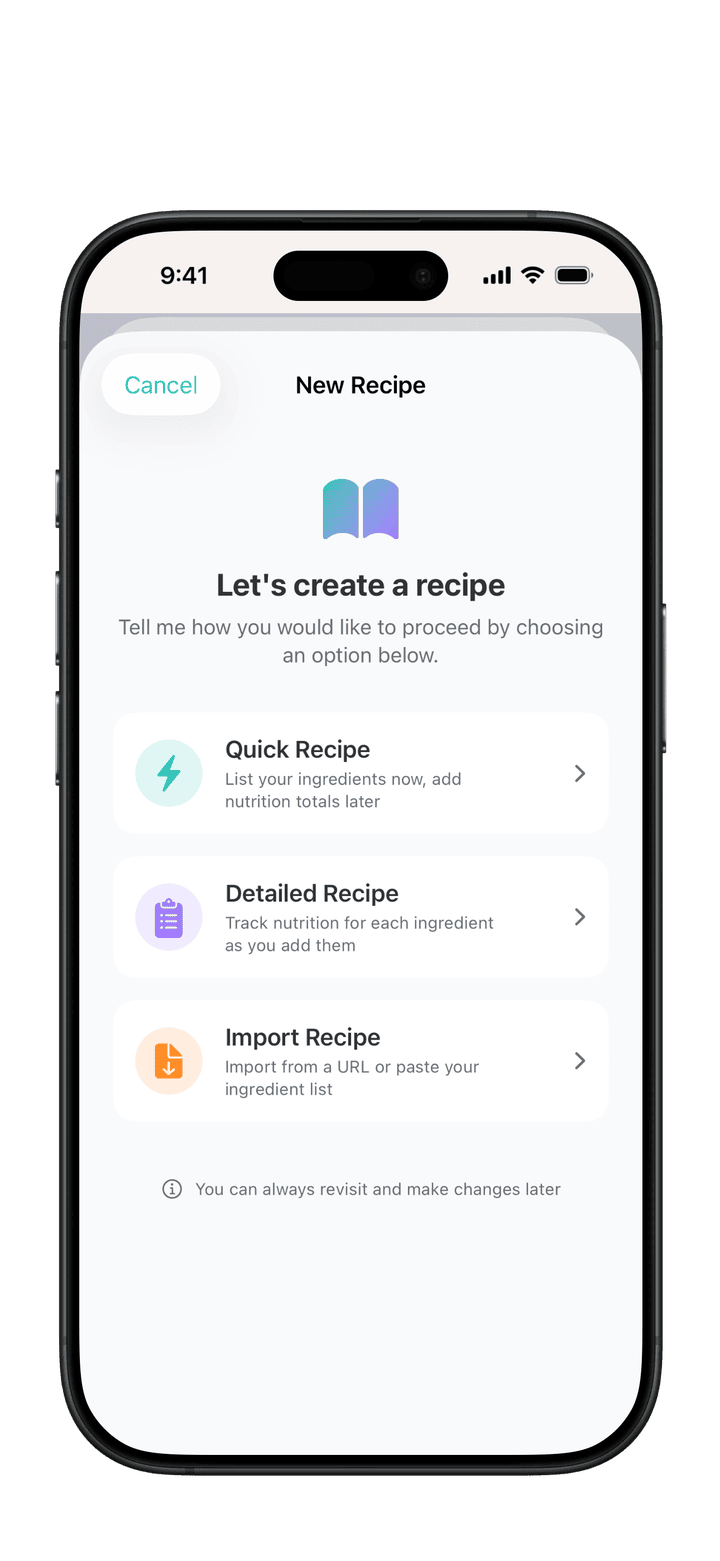
PureLog offers two ways to create recipes: Quick Recipe mode for fast entry, and Detailed Recipe mode for comprehensive nutrition tracking.
Getting Started
In the Log Food tab, tap Recipes
Tap the + button in the top right corner
Choose your preferred creation method
Quick Recipe Mode
Quick Recipe mode is perfect when you want to capture a recipe now and add nutrition details later.
Select Quick Recipe from the welcome dialog
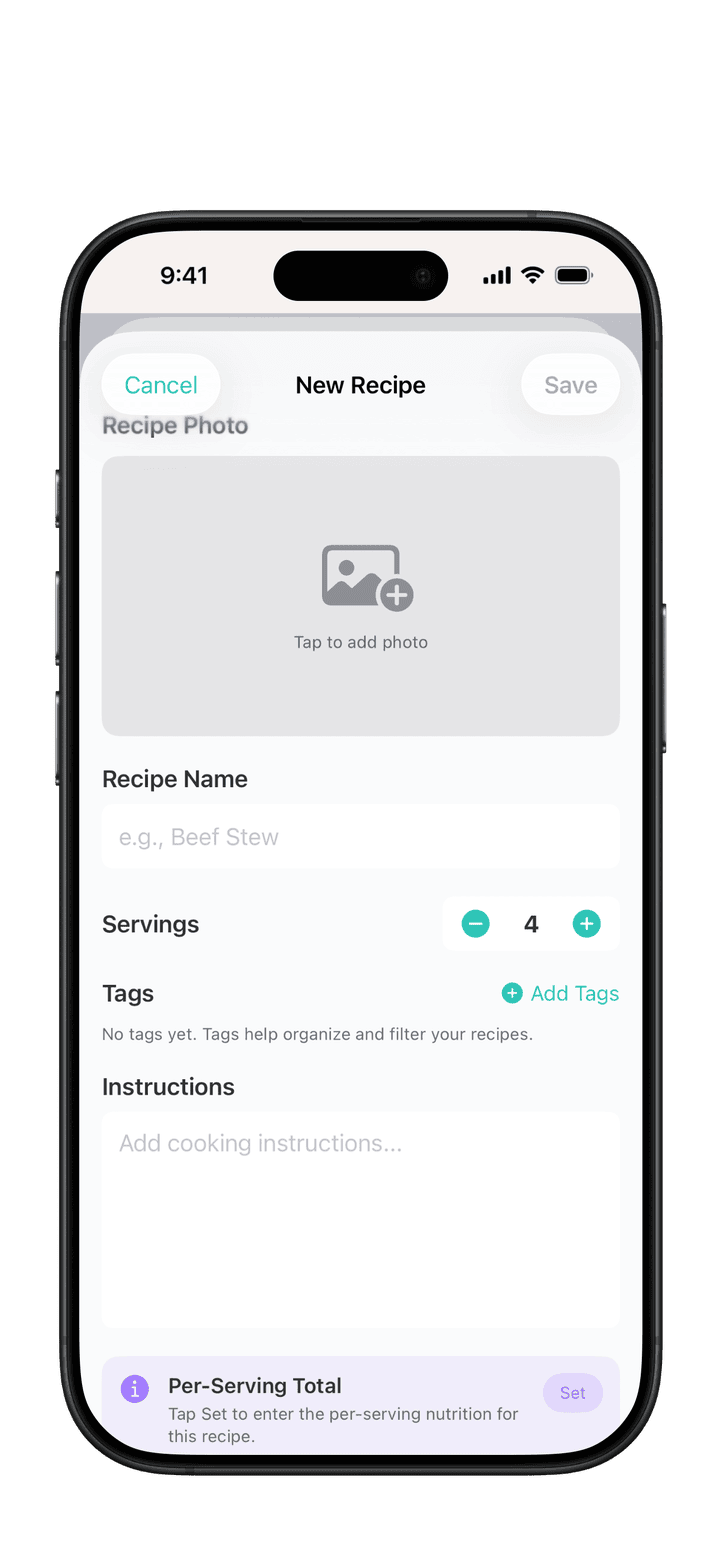
Enter your recipe name
Set the number of servings
Add a photo (optional) by tapping the camera icon
Add ingredients using one of three methods:
Type - Manually enter each ingredient
Paste - Bulk paste an ingredient list
Add cooking instructions (optional)
Add tags for organization (optional)
Tap Save
Detailed Recipe Mode
Detailed Recipe mode is ideal when you want to track nutrition for each ingredient as you build your recipe.
Select Detailed Recipe from the welcome dialog
Enter your recipe name and servings
Add each ingredient and its nutrition:
Use Sage to automatically estimate nutrition (Premium)
Scan a barcode for packaged ingredients (Premium)
Scan a nutrition label with your camera (Premium)
Choose from suggestions based on your previous recipes
Enter nutrition manually (Premium)
Add instructions and tags
Tap Save
Adding Ingredients by Pasting
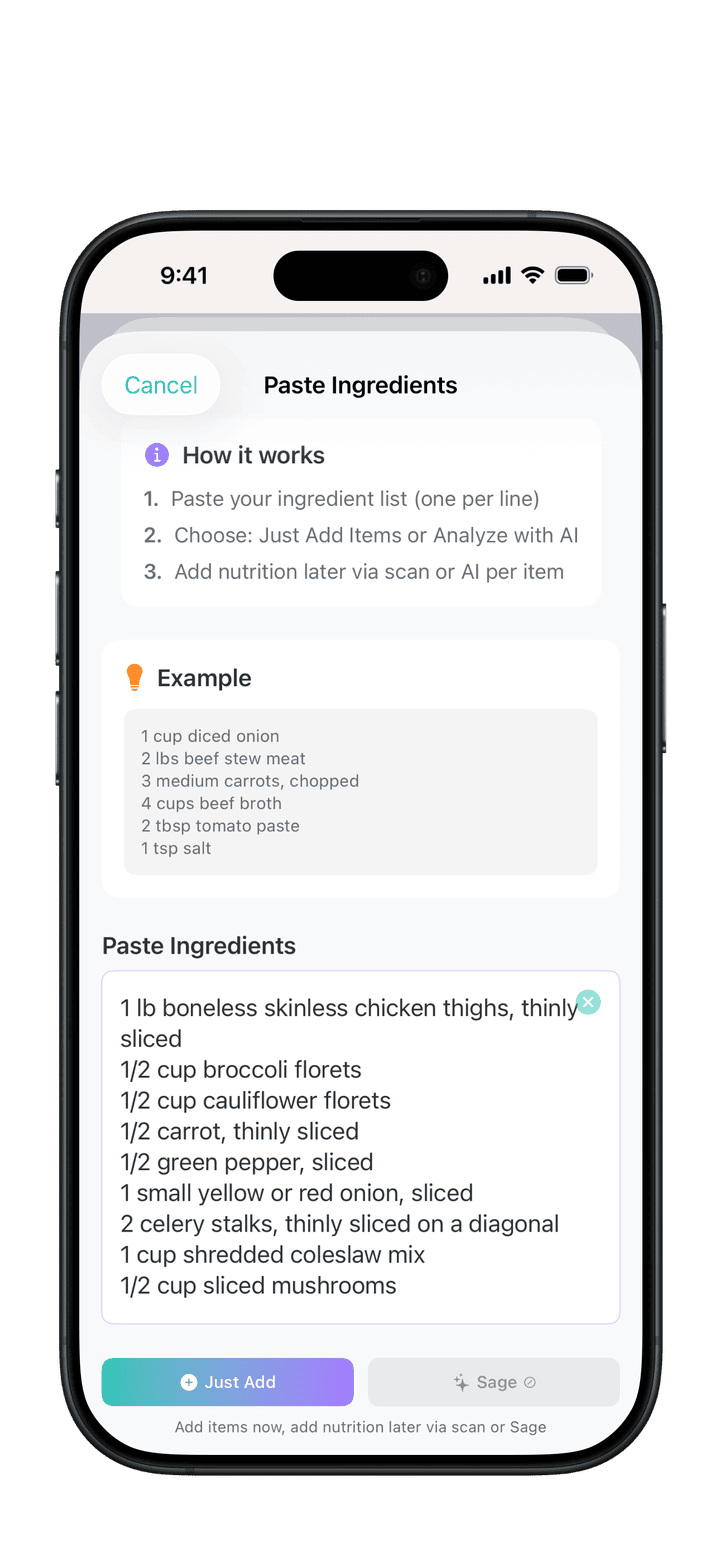
The bulk paste feature makes it easy to add multiple ingredients at once from another source.
In the Recipe Builder, tap Paste
Paste your ingredient list (one ingredient per line)
Choose an action:
Just Add - Adds the ingredients straight to your recipe, without nutrition data (free)
Sage - Analyzes nutrition for each ingredient so you can review the results (Premium)
If you used Sage, check the results and tap Add All to Recipe
Supported Formats:
1 cup diced onion
2 lbs beef stew meat
3 medium carrots, chopped
Bulleted or numbered lists are automatically cleaned
Saving Your Recipe
When you save a new recipe, PureLog guides you through nutrition options based on your ingredients:
If all ingredients have nutrition data:
PureLog adds up the nutrition per serving for you. Tap Save Recipe.
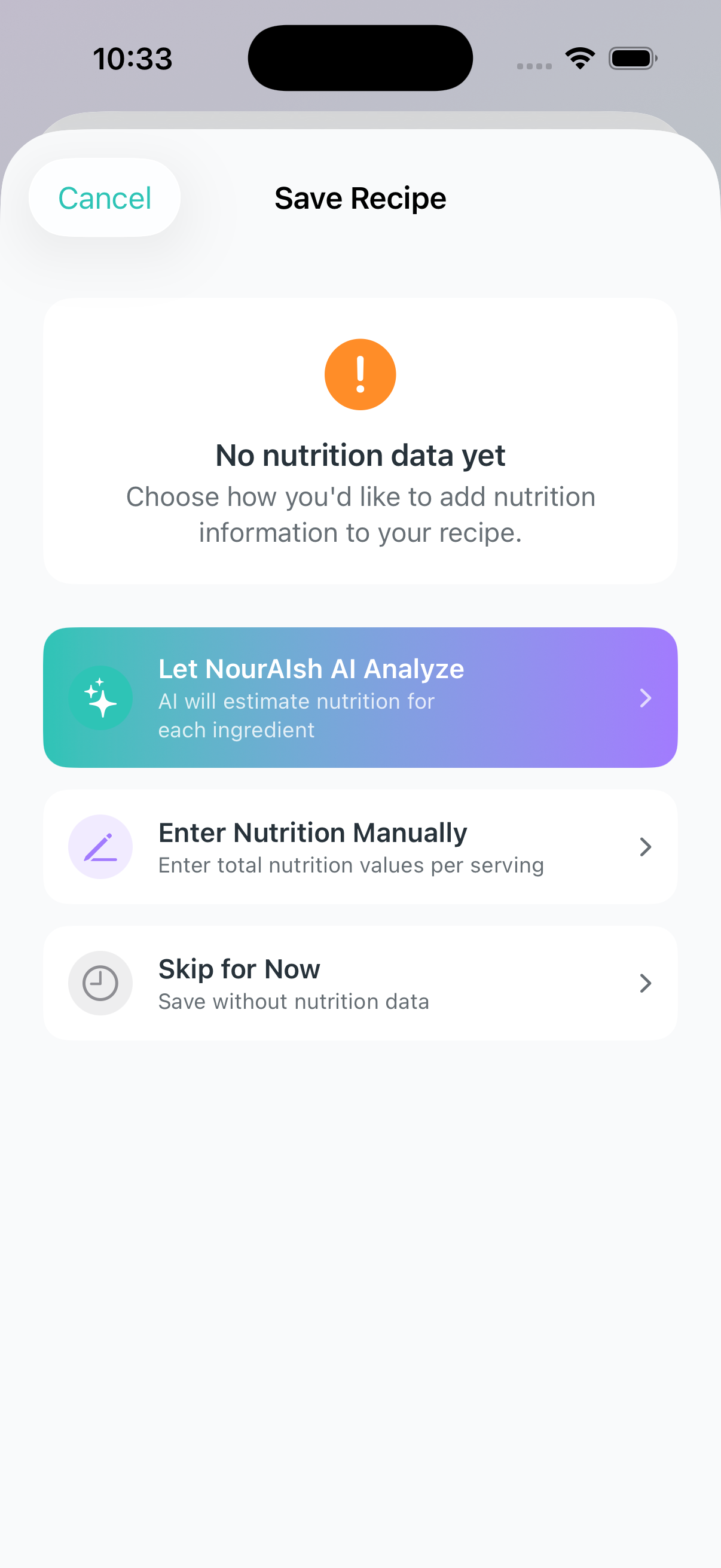
If no ingredients have nutrition:
Let Sage Analyze - Sage estimates nutrition for every ingredient (Premium)
Enter Nutrition Manually - Enter the total nutrition per serving yourself
Skip for Now - Save without nutrition and add it later
If only some ingredients have nutrition:
Analyze Missing Only - Sage fills in just the missing ingredients (Premium)
Save with Current Data - Use the nutrition you have so far
I'll Add Nutrition Later - Save now and finish the ingredients later
Enter Total Nutrition - Enter the total nutrition per serving yourself
Importing a Recipe
PureLog supports importing recipes from popular recipe websites or from shared recipe files. New shared recipes use the .purelog format, and PureLog still opens older .nouraish files too — so anything you saved or received before the rebrand keeps working.
Import from URL
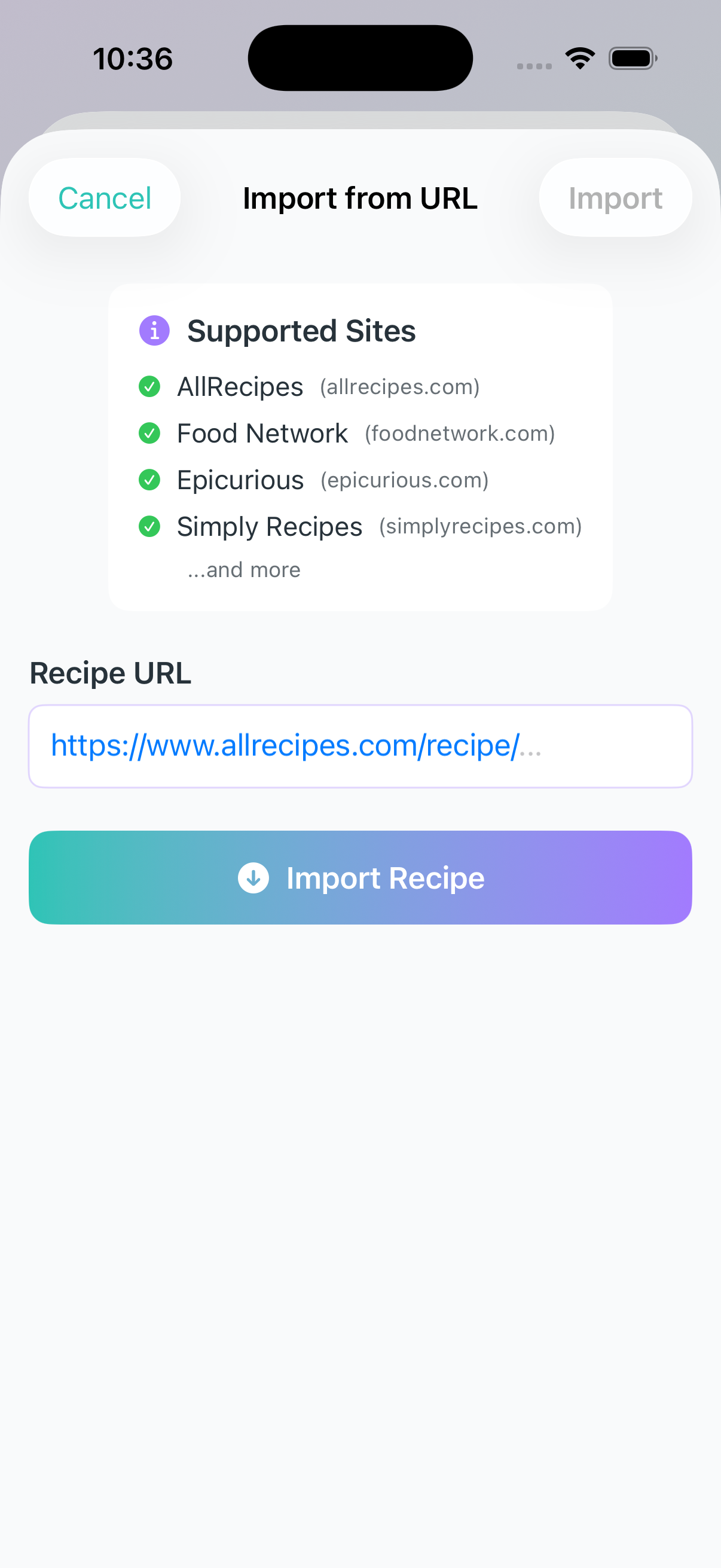
Import recipes directly from your favorite cooking websites.
Supported Websites:
AllRecipesFood NetworkEpicuriousSimply RecipesTaste of HomeBon AppetitSerious EatsCookie and KateFood.comDelish
And many more using standard recipe formats.
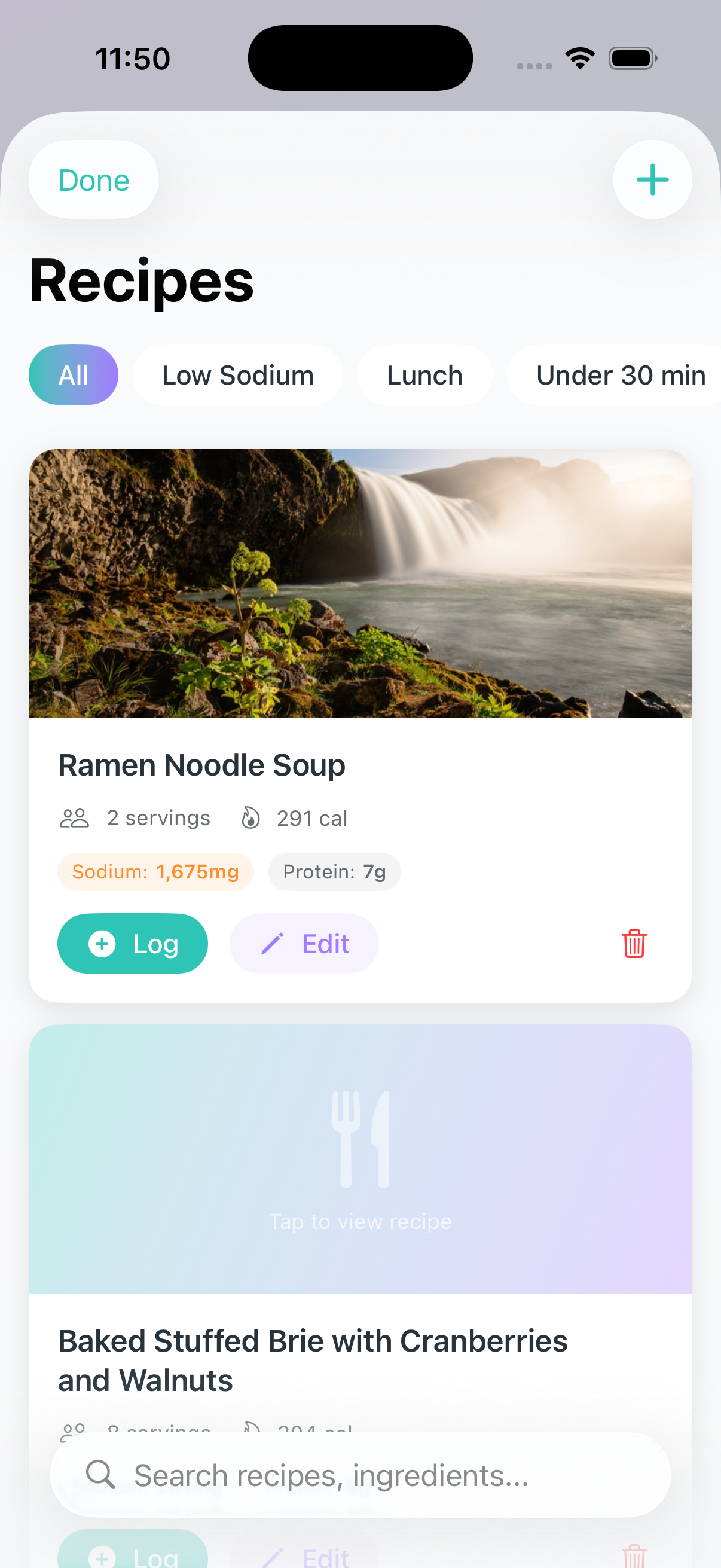
In the Log Food tab, tap Recipes
Tap the + button
Select Import Recipe then Import from URL
Paste the recipe URL
Tap Import
Wait while PureLog fetches and parses the recipe
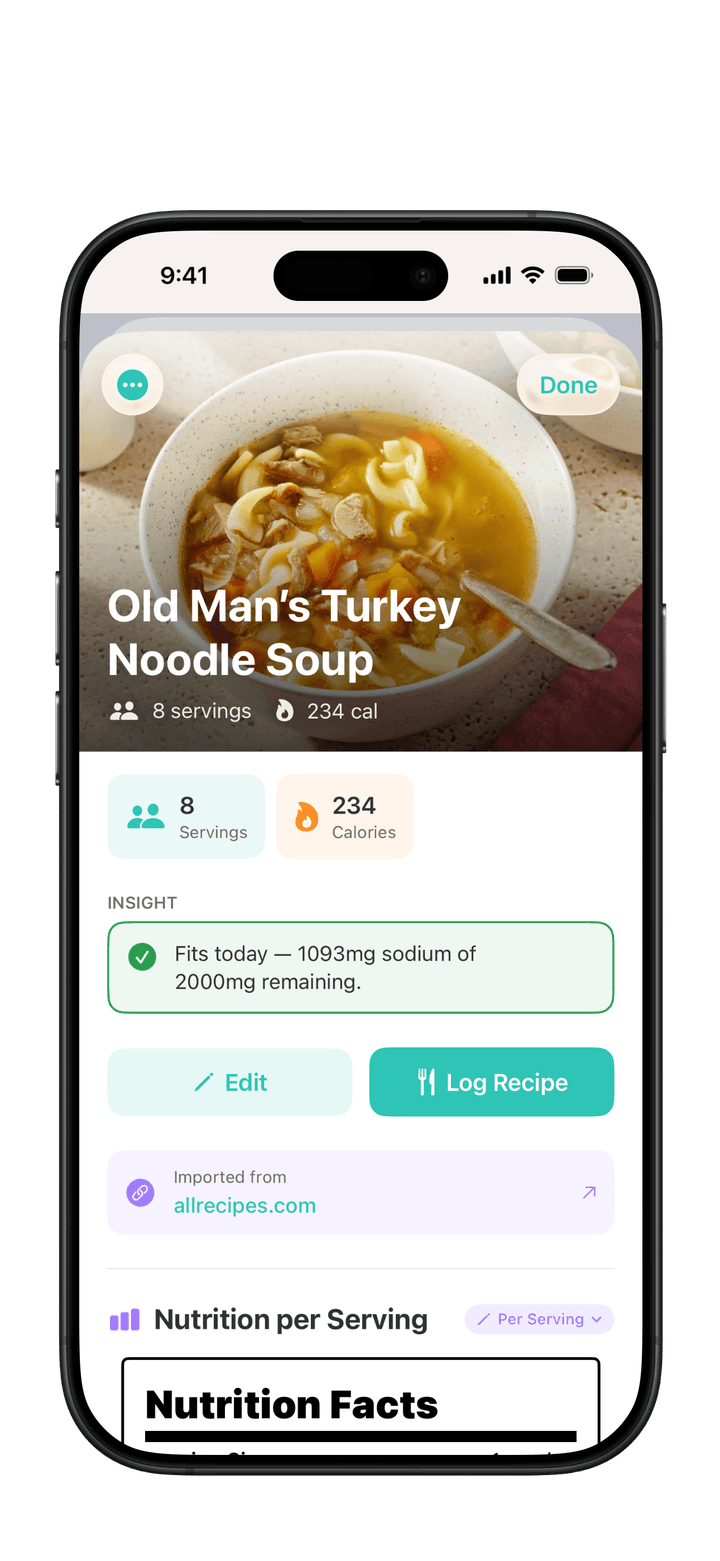
Review the imported recipe in the editor
Make any adjustments and tap Save
What Gets Imported:
Recipe name and photo
Servings
Ingredients with quantities
Cooking instructions
Nutrition data (if available on the website)
Source attribution (link back to original)
Import from Shared File
Receive recipes shared by friends and family as .purelog files (older .nouraish files open too).
Receive a .purelog file via AirDrop, Messages, Email, or other sharing method
Tap the file to open it in PureLog
Preview the recipe details:
Photo
Nutrition per serving
Ingredients
Instructions
Tap Add to My Recipes
Editing a Recipe
You can edit any recipe in your collection at any time.
Editing Recipe Details
In the Log Food tab, tap Recipes
Find your recipe and tap Edit
Make your changes:
Update the recipe name
Adjust servings
Add or change the photo
Edit instructions
Manage tags
Tap Save
Editing Ingredients
To edit an existing ingredient:
Tap the pencil icon next to the ingredient in the recipe builder
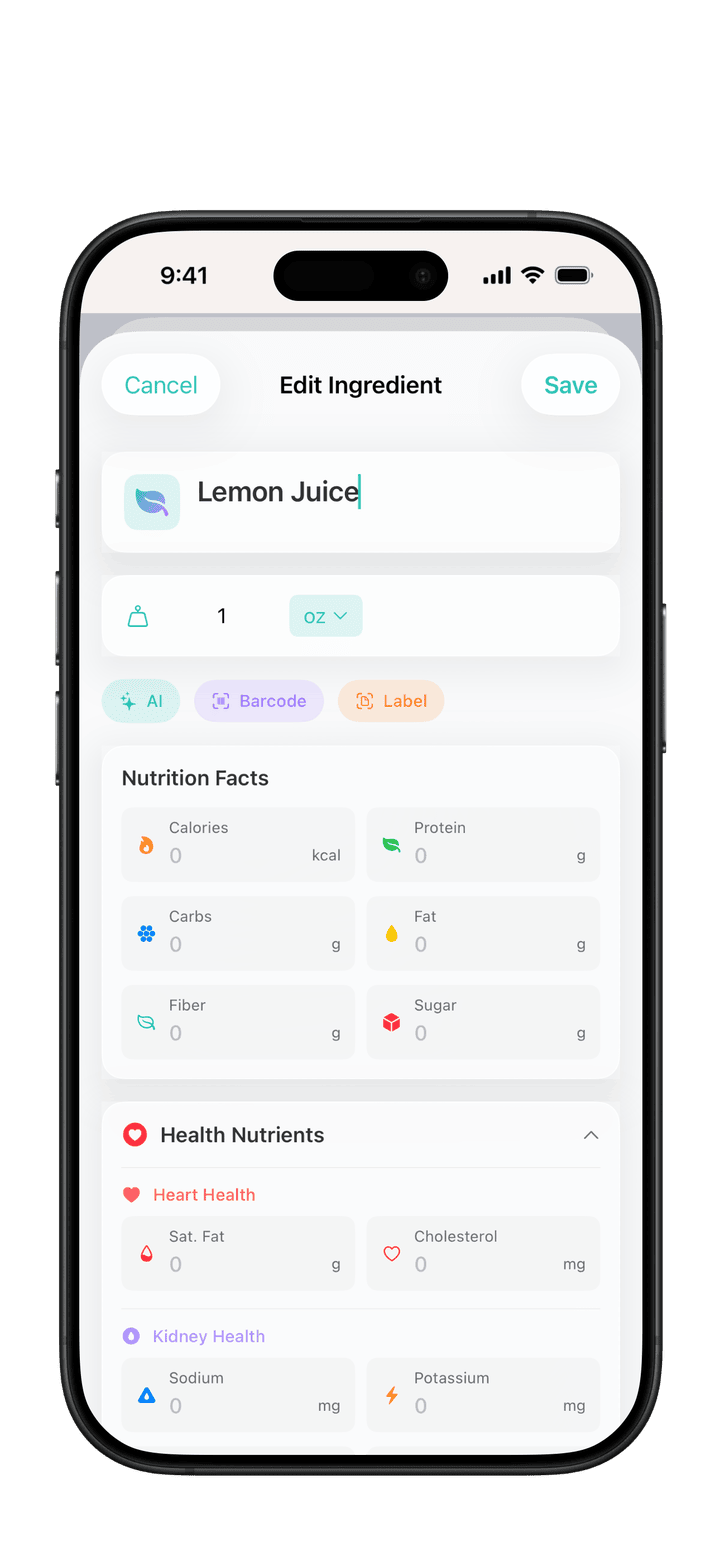
Update the quantity or name
Modify nutrition data if needed
Tap Save
To delete an ingredient:
Tap the - button next to the ingredient
Recipe Tags
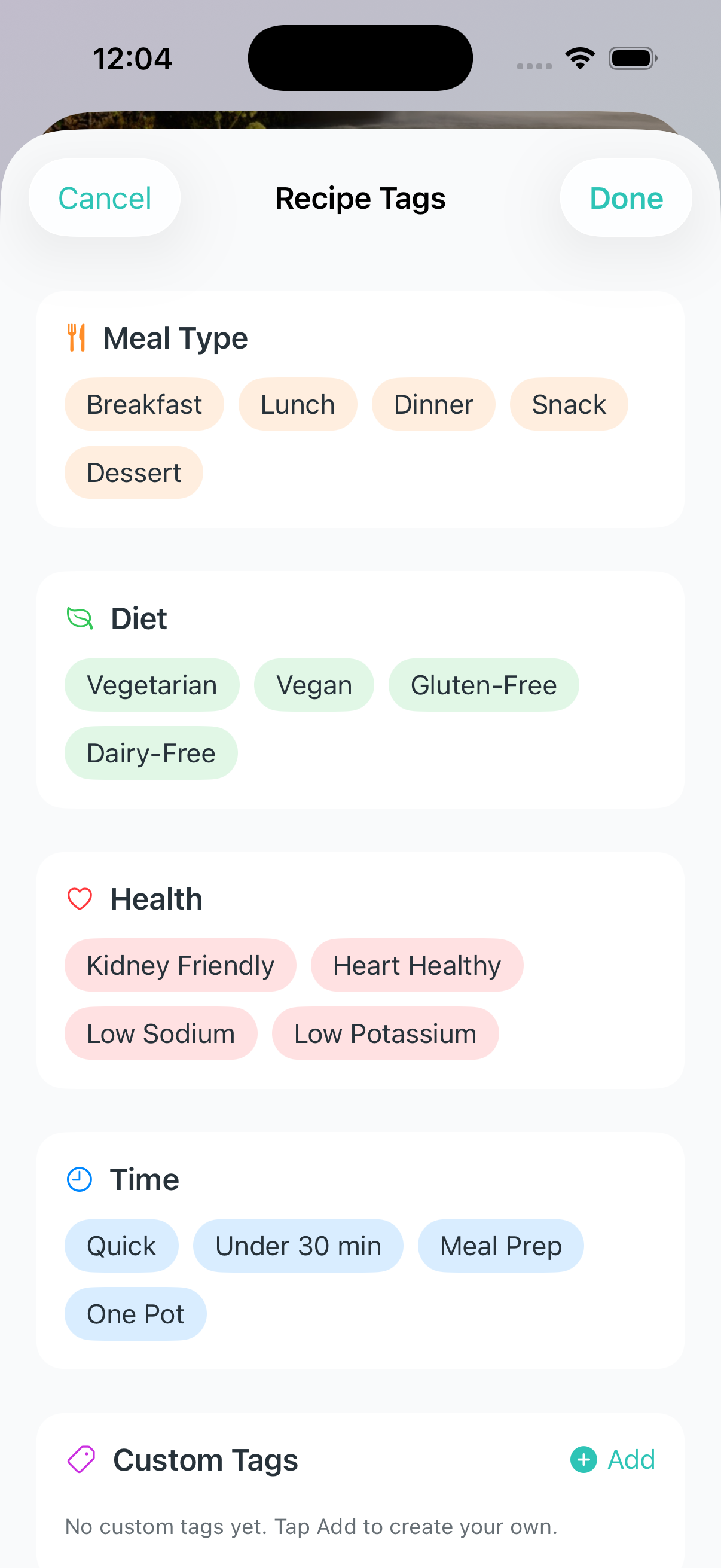
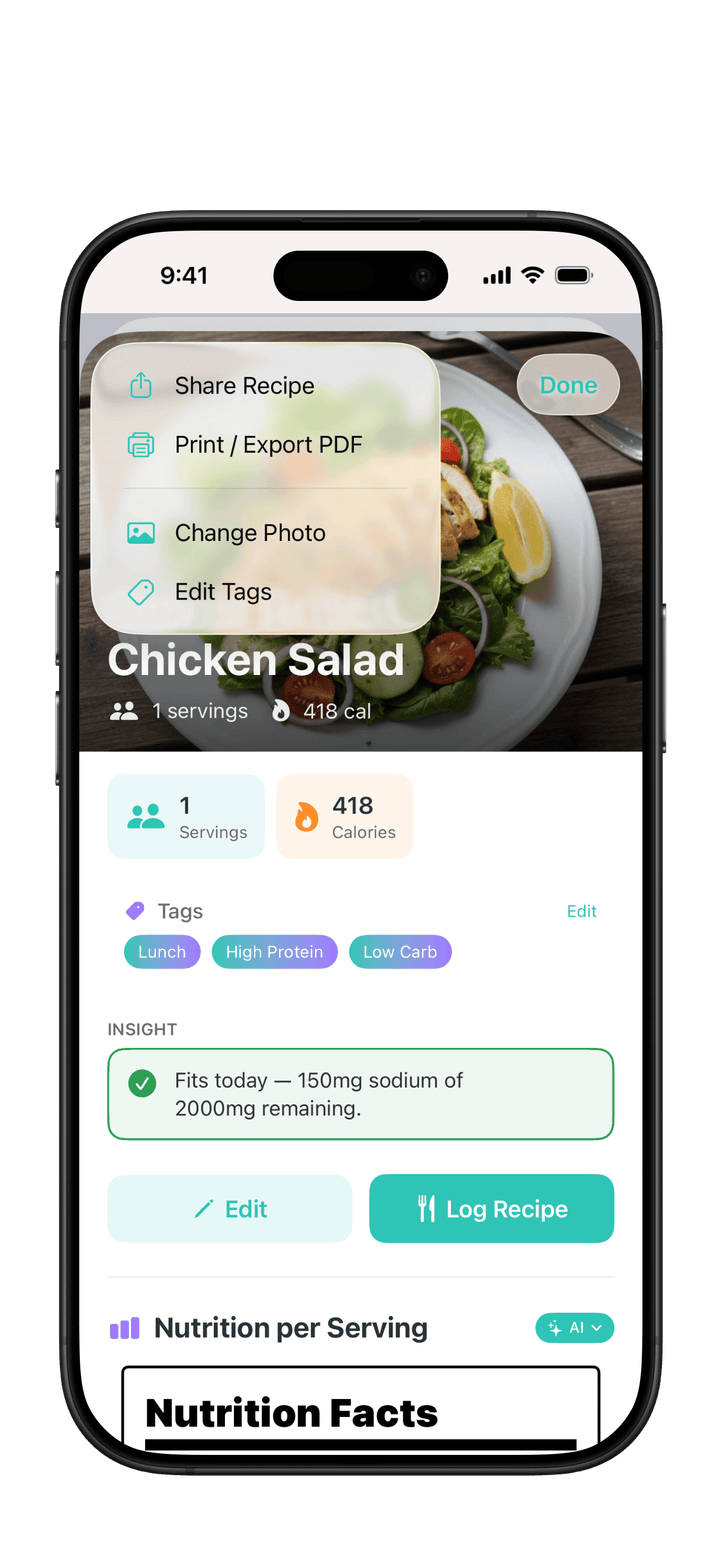
Tags help you organize and filter your recipes. Tap Add Tags in the recipe builder, or choose Edit Tags from a recipe's menu (...).
Built-in Tag Categories:
Meal Type - Breakfast, Lunch, Dinner, Snack, Dessert
Diet - Vegetarian, Vegan, Gluten-Free, Dairy-Free
Health - Kidney Friendly, Heart Healthy, Low Sodium, Low Potassium
Time - Quick, Under 30 min, Meal Prep, One Pot
Custom Tags:
Create your own tags by tapping Add in the Custom Tags section. Custom tags are great for personal organization like "Family Favorites" or "Holiday Recipes".
Editing Ingredient Nutrition
For each ingredient, you can add or update nutrition using multiple methods:
Sage Analysis (Premium)
Tap Sage to have Sage estimate nutrition based on the ingredient name and quantity
Barcode Scanning (Premium)
Tap Barcode to scan a product
Adjust the serving size using quick buttons (15g, 28g, 30g, 50g, 100g, etc.)
Set the number of servings used in your recipe
Nutrition Label Scanning (Premium)
Tap Label to photograph a nutrition facts panel
PureLog extracts the values automatically
Specify the amount used in your recipe
Suggestions
PureLog shows previously used ingredients with matching names
Tap to copy nutrition data from a past ingredient
Manual Entry (Premium)
Enter nutrition values directly
Main nutrients: Calories, Protein, Carbs, Fat, Fiber, Sugar
Health nutrients (expandable): Sodium, Potassium, Phosphorus, Cholesterol, and more
Updating Recipe Nutrition
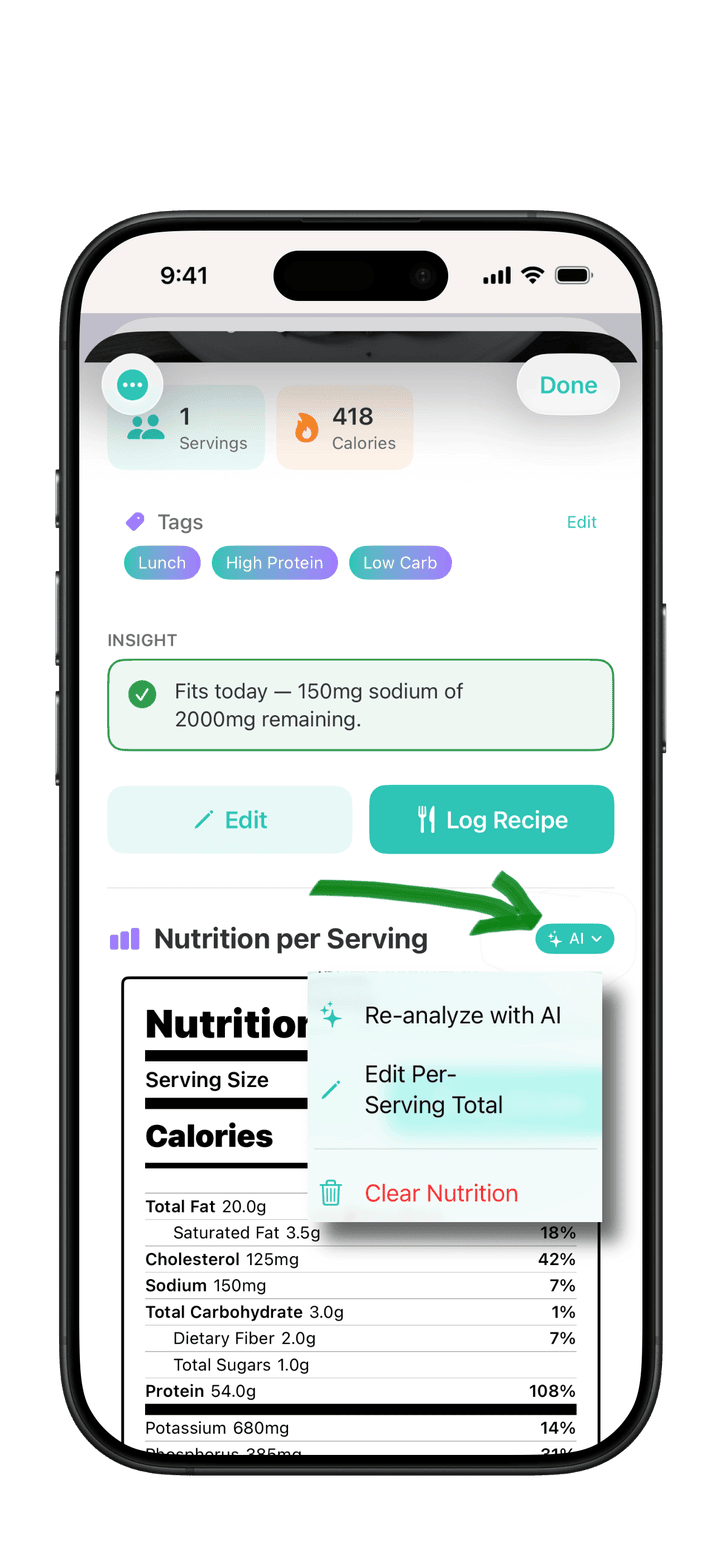
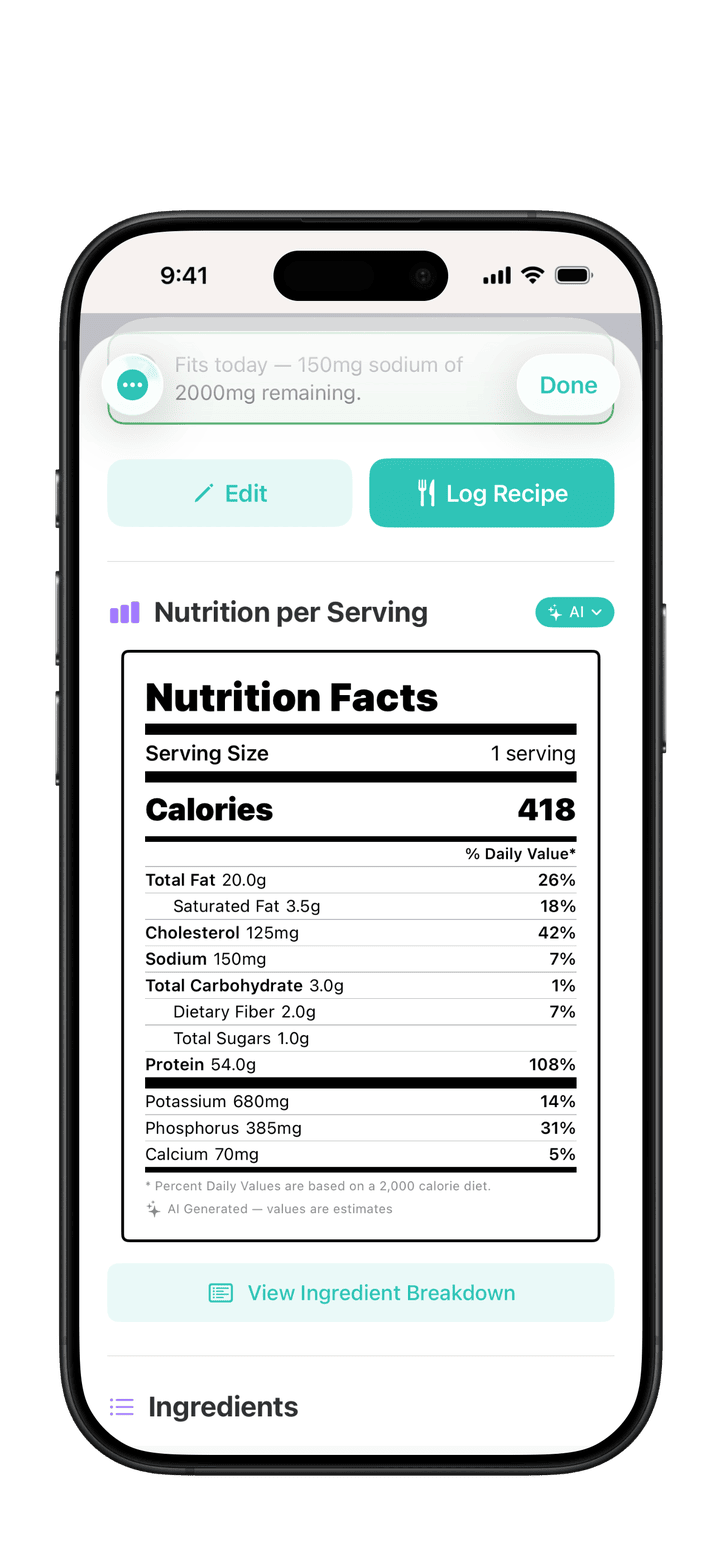
You can change how a recipe's nutrition is calculated at any time. This is referring to the nutrition per serving for the recipe.
Open the recipe detail view
Find the Nutrition Source badge
Tap to reveal options:
Re-analyze with Sage - Have Sage re-estimate all ingredient nutrition (Premium)
Edit Per-Serving Total - Input total per-serving nutrition yourself
Clear Nutrition - Remove all nutrition data
Sharing & Exporting Recipes
Share your recipes with friends, family, or export them for your records.
Share as PureLog File
Create a shareable .purelog file that includes your recipe and its nutrition data.
Open the recipe you want to share
Tap the menu icon (...) in the top left
Select Share Recipe
Choose how to share:
AirDrop
Messages
Email
Save to Files
Or any other sharing option
What's Included:
Recipe photo (optimized for sharing)
All ingredients with nutrition data
Complete cooking instructions
Nutrition calculation method
Recipients can open the .purelog file in their PureLog app to add the recipe to their collection.
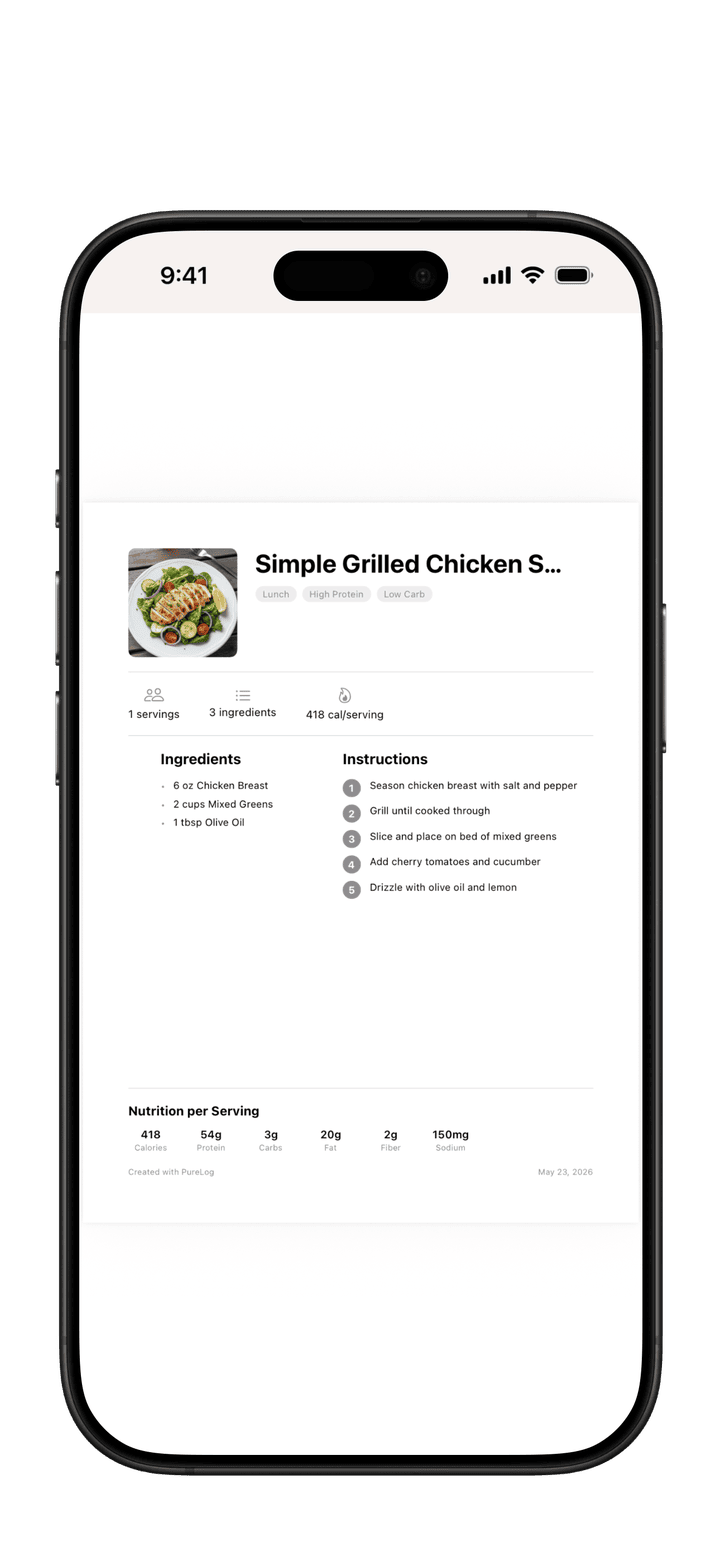
Export to PDF
Create a printable PDF version of your recipe.
Open the recipe
Tap the menu icon (...)
Select Print / Export PDF
Print directly or save as PDF
PDF Contents:
Recipe photo
Recipe name and servings
Nutrition facts per serving
Ingredients list
Cooking instructions
Source attribution (for imported recipes)
Logging Recipes
Track when you make and eat your recipes by logging them to your History.
In the Log Food tab, tap Recipes
Find your recipe and tap Log
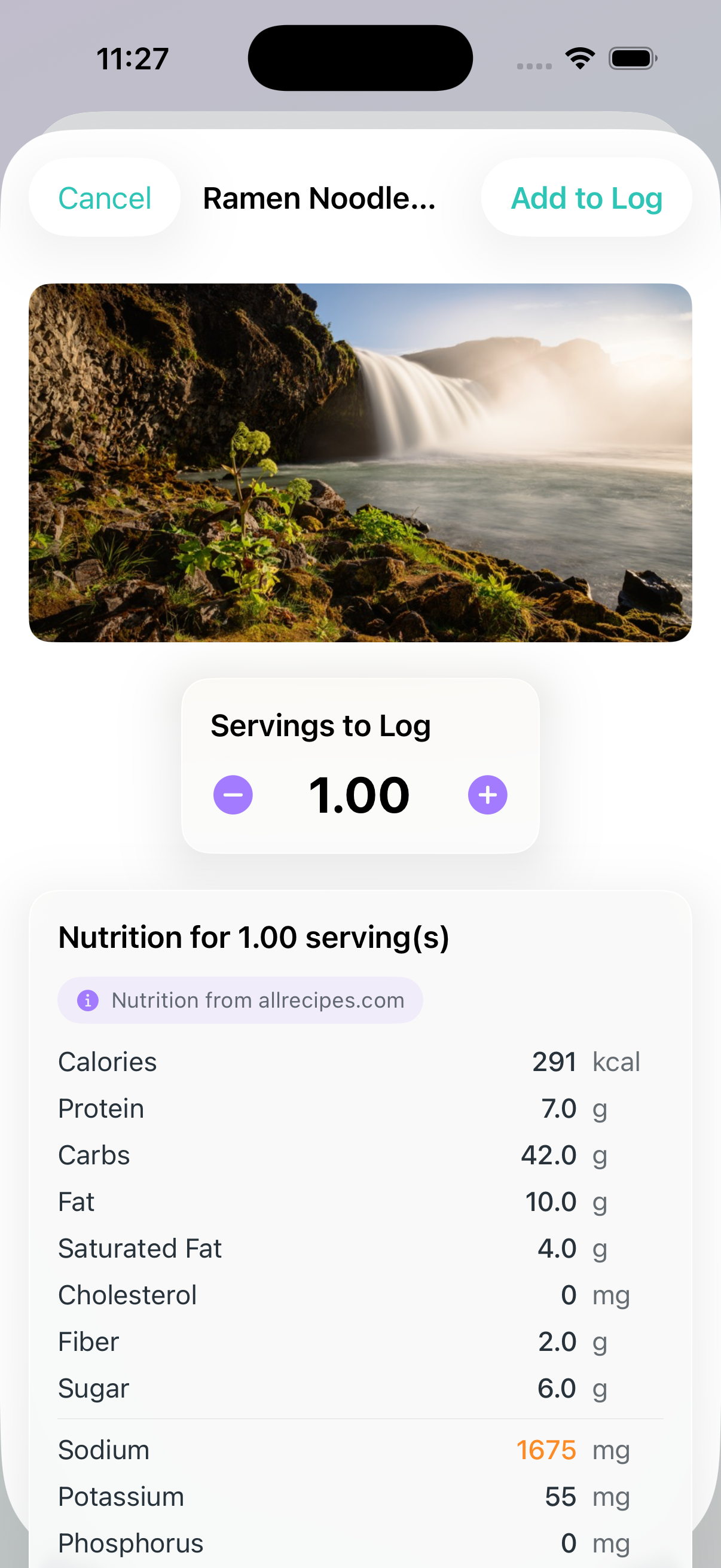
Adjust the number of servings you're eating
Select the meal type (breakfast, lunch, dinner, snack, or beverage)
Tap Add to Log
Features:
Live nutrition preview - See how nutrition changes as you adjust servings
Fractional servings - Log 0.25, 0.5, 1.5 servings, etc.
Smart meal detection - PureLog suggests a meal type based on the recipe name and time of day
Source tracking - Imported recipes show their original source
Recipe Nutrition Tracking
PureLog tracks 14 different nutrients to support your health goals, whether you're focused on general wellness, kidney health, or heart health.
Tracked Nutrients
Main Nutrients:
Calories
Protein
Carbohydrates
Fat
Fiber
Sugar
Heart Health:
Saturated Fat
Cholesterol
Kidney Health:
Sodium
Potassium
Phosphorus
Calcium
Other:
Caffeine
Fluid Volume
Nutrition Sources
PureLog tracks how nutrition was determined for each recipe:
Source
Description
Sage
Sage analyzed each ingredient
Summed
Calculated from ingredient nutrition (barcode/label scans)
Per Serving
You entered the per-serving totals
Not Set
No nutrition data yet
Ingredient Breakdown
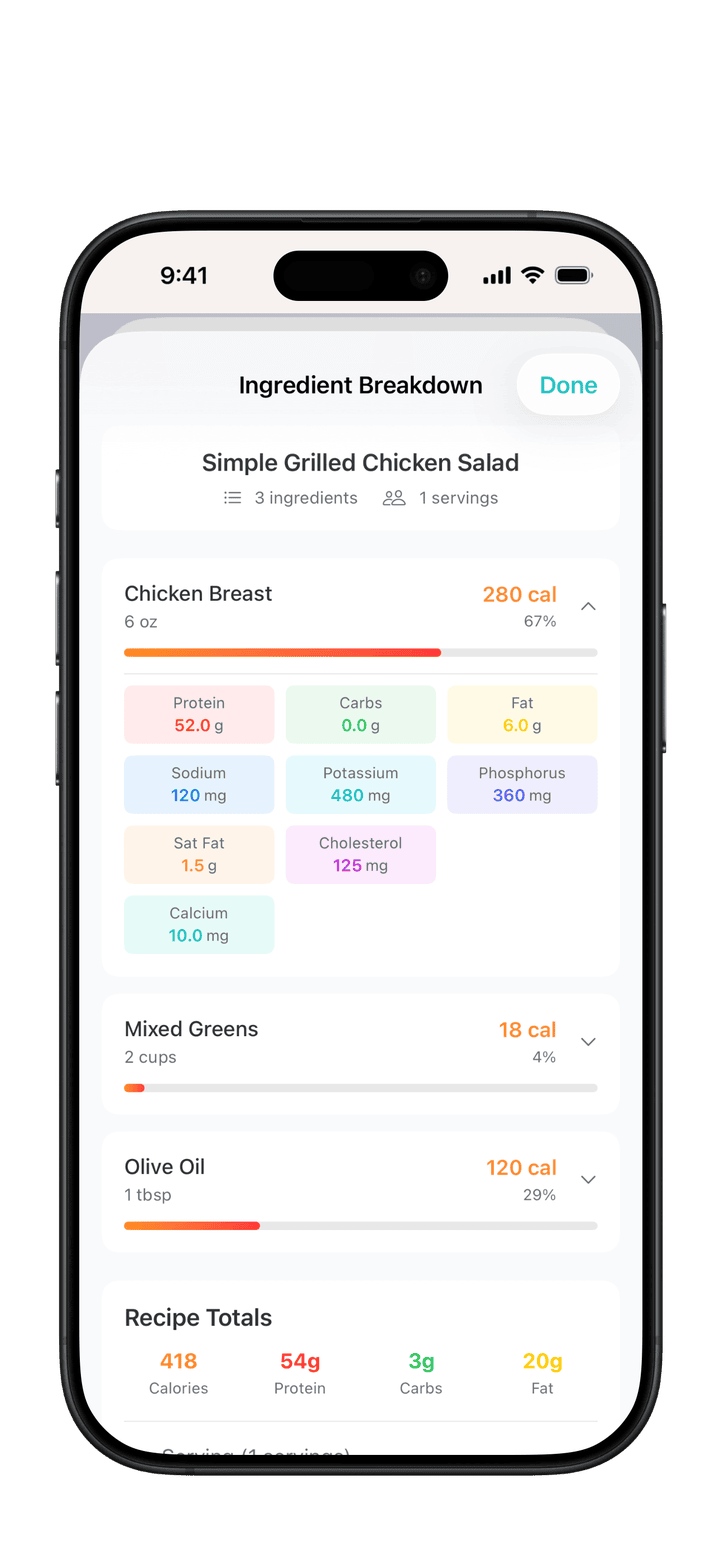
For recipes with per-ingredient nutrition data, you can see how each ingredient contributes to the total.
Open a recipe with Sage or summed nutrition
Tap View Ingredient Breakdown
See each ingredient's contribution to total nutrition
Premium Features
Some recipe features require a PureLog Premium subscription:
Feature
Free
Premium
Create recipes manually
Yes
Yes
Import from URL
Yes
Yes
Import shared recipes
Yes
Yes
Log recipes
Yes
Yes
Share recipes
Yes
Yes
Export to PDF
Yes
Yes
Sage ingredient analysis
-
Yes
Barcode scanning
-
Yes
Nutrition label scanning
-
Yes
Per-ingredient nutrition editing
-
Yes
Recipe insights
Yes
Yes
Note: Free users can still create recipes and track their nutrition by entering the per-serving totals themselves or by importing recipes that include nutrition data from websites.
Tips & Best Practices
For Accurate Nutrition
Use barcode scanning for packaged ingredients when possible
Be specific with quantities - "1 cup diced onion" is better than "onion"
Check Sage's estimates - Make sure Sage's nutrition looks reasonable for your ingredients
Import from sites with nutrition - Many recipe sites include nutrition data
For Organization
Use tags to categorize recipes (e.g., "breakfast", "low-sodium", "quick")
Search and filter to find recipes quickly
Add photos to make recipes easier to recognize
For Sharing
Include instructions so recipients can make the recipe
Verify nutrition before sharing with health-conscious friends
Share via AirDrop for the fastest experience on iOS
Frequently Asked Questions
Can I import recipes from any website?
PureLog works best with popular recipe sites that use standard recipe formats. If a site doesn't import properly, you can copy and paste the ingredients using the bulk paste feature.
Why doesn't my imported recipe have nutrition data?
Not all recipe websites provide nutrition information. You can add nutrition by using Sage analysis (Premium) or entering values manually.
Can I share recipes with someone who doesn't have PureLog?
Use the Print / Export PDF option to create a shareable PDF that anyone can view or print.
How do I update a recipe's nutrition after editing ingredients?
Tap the nutrition source badge in the recipe detail view and select "Re-analyze with Sage" or update ingredients individually.
Can I log a partial serving of a recipe?
Yes! When logging, use the stepper to adjust servings in increments of 0.25.
How accurate are Sage's nutrition values?
Sage's nutrition values are estimates based on generic food data. For the most accurate results, verify key ingredients against package labels, especially for items where nutrition varies significantly by brand.