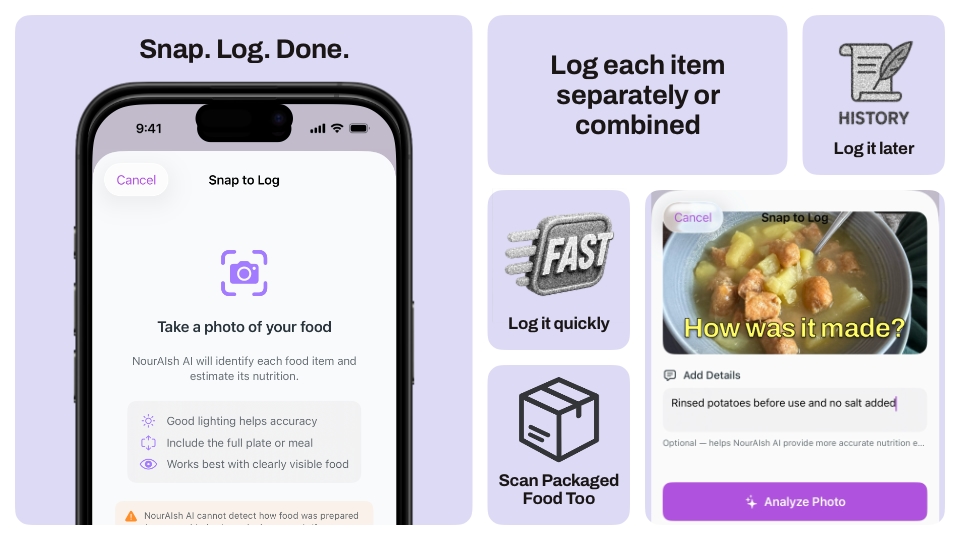
Let's be honest: the biggest barrier to consistent nutrition tracking isn't motivation. It's the tedious process of searching for each food, estimating portions, and entering it all manually. A home-cooked meal with four or five components can take longer to log than it did to eat. That friction adds up, and eventually a lot of people just stop tracking altogether.
That's exactly the problem Snap to Log was built to solve. Take a photo of your plate, and Sage identifies every food item, estimates portions, and calculates the nutrition for you. One photo, multiple foods, done in seconds.
How It Works
Snap to Log follows a simple four-step flow designed to get you from plate to logged entry as quickly as possible:
1. Take a Photo
Open Snap to Log from the Log Food tab and either snap a new photo with your camera or choose one from your photo library. The screen offers a few quick tips for best results: good lighting, the full plate visible, and clearly visible food. You can also use Snap to Log to photograph packaged food nutrition labels if you'd rather not scan a barcode.
2. Add Context (Optional)
This is where Snap to Log gets really clever. Before analyzing your photo, you can add optional details about how the food was prepared. Type something like "made with olive oil," "no added salt," or "whole wheat bread" and Sage will factor those details into its nutrition estimates. This is especially valuable if you're managing sodium or potassium for kidney or heart health, since preparation methods can significantly affect nutrition content that a photo alone can't reveal.
3. Sage Analyzes Your Photo
Sage examines your photo (along with any context you provided) and identifies each distinct food item. It estimates portion sizes in grams or milliliters and calculates nutrition values including calories, protein, carbs, fat, and micronutrients. Each item gets a confidence score so you know how certain the AI is about its estimates.
4. Review and Log
You'll see a results screen listing every food item the AI found, each with a quick summary showing calories, protein, carbs, and fat. From here you have several options for how to log them.
Flexible Logging Options
Different meals call for different approaches, and Snap to Log gives you the flexibility to log your way:
- Log items individually — Tap any item to open its detail view where you can review the AI's estimates, adjust portions, select a meal type, and log it on its own. Perfect when you want to fine-tune individual foods.
- Log all individually — When you're happy with the AI's estimates and just want everything logged fast, tap "Log All Individually" to log every detected item as its own separate entry. You pick one meal type and all items are logged at once.
- Log all as one entry — Prefer to see your entire plate as a single line item? This option combines all detected foods into one entry with the nutrition totals summed together. Great for mixed dishes or when you want a simple log.
Tip: You can mix and match. Log a few items individually first to adjust their portions, then use "Log All Individually" to quickly log the remaining items.
Your Photo Stays with the Entry
Every food logged through Snap to Log keeps the original photo attached. When you view or edit that entry later, you'll see your meal photo as a banner at the top. It's a handy visual reference—especially useful when reviewing what you ate earlier in the week or checking if the AI's portion estimate looks right in hindsight.
Tips for the Best Results
Sage is impressively accurate, but a few small habits will help it perform even better:
- Good lighting matters. Natural light or a well-lit room helps the AI distinguish between foods more accurately. Avoid dark or heavily shadowed photos.
- Show the full plate. Try to capture all the food in one shot rather than close-ups of individual items. The AI uses the full image to understand proportions.
- Use the details field. If you know something the camera can't see—like that the potatoes were boiled without salt, or the salad dressing is on the side—mention it. Those details make a real difference in the accuracy of nutrition estimates.
- Review before logging. While the AI does a great job, it's always worth a quick glance at the estimates. Tap any item to adjust portions or nutrition values if something looks off.
A Note for Kidney and Heart Health Users
Snap to Log includes a health caution banner that's especially relevant if you're tracking nutrition for kidney or heart health. AI can identify foods and estimate standard nutrition values, but it can't detect preparation methods like added salt, soaking, or leaching that significantly affect sodium, potassium, and phosphorus levels. If you're managing these nutrients closely, always review the AI's estimates and use the optional details field to note how food was prepared. You can also adjust any value manually before logging.
Snap. Log. Done.
Snap to Log removes the biggest friction point in nutrition tracking. Instead of spending minutes searching and entering each food manually, you spend seconds taking a photo and reviewing the results. For anyone who's ever abandoned their tracking because it felt like too much work, this is a game-changer.
Snap to Log is available as part of PureLog Premium. Give it a try the next time you sit down to eat—your future self (and your nutrition log) will thank you.