Welcome to PureLog! This guide will help you set up the app and start tracking your nutrition in minutes.
First Launch & Profile Setup
When you first open PureLog, you'll be guided through a quick setup process to personalize your experience.
Welcome
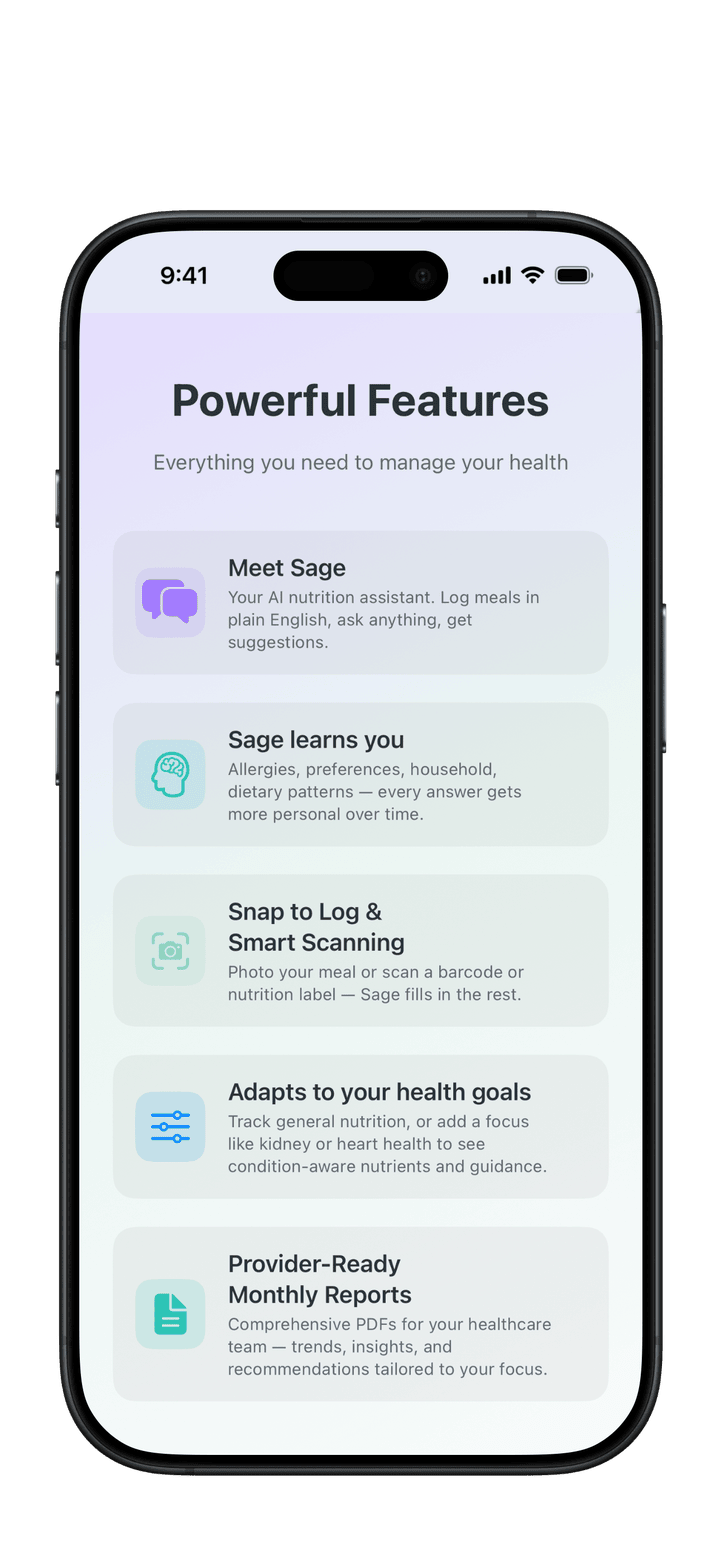
After the welcome screen, a Powerful Features page gives a quick tour of what PureLog does:
Meet Sage - Log meals in plain English and ask anything
Sage learns you - Allergies, preferences, household, and dietary patterns
Snap to Log & Smart Scanning - Photograph a meal or scan a barcode or nutrition label
Adapts to your health goals - Add a kidney or heart health focus
Provider-Ready Monthly Reports - PDFs to share with your healthcare team
Health Vitals & Reminders - Weight, blood pressure, sleep, and meal and fluid reminders
Creating Your Profile
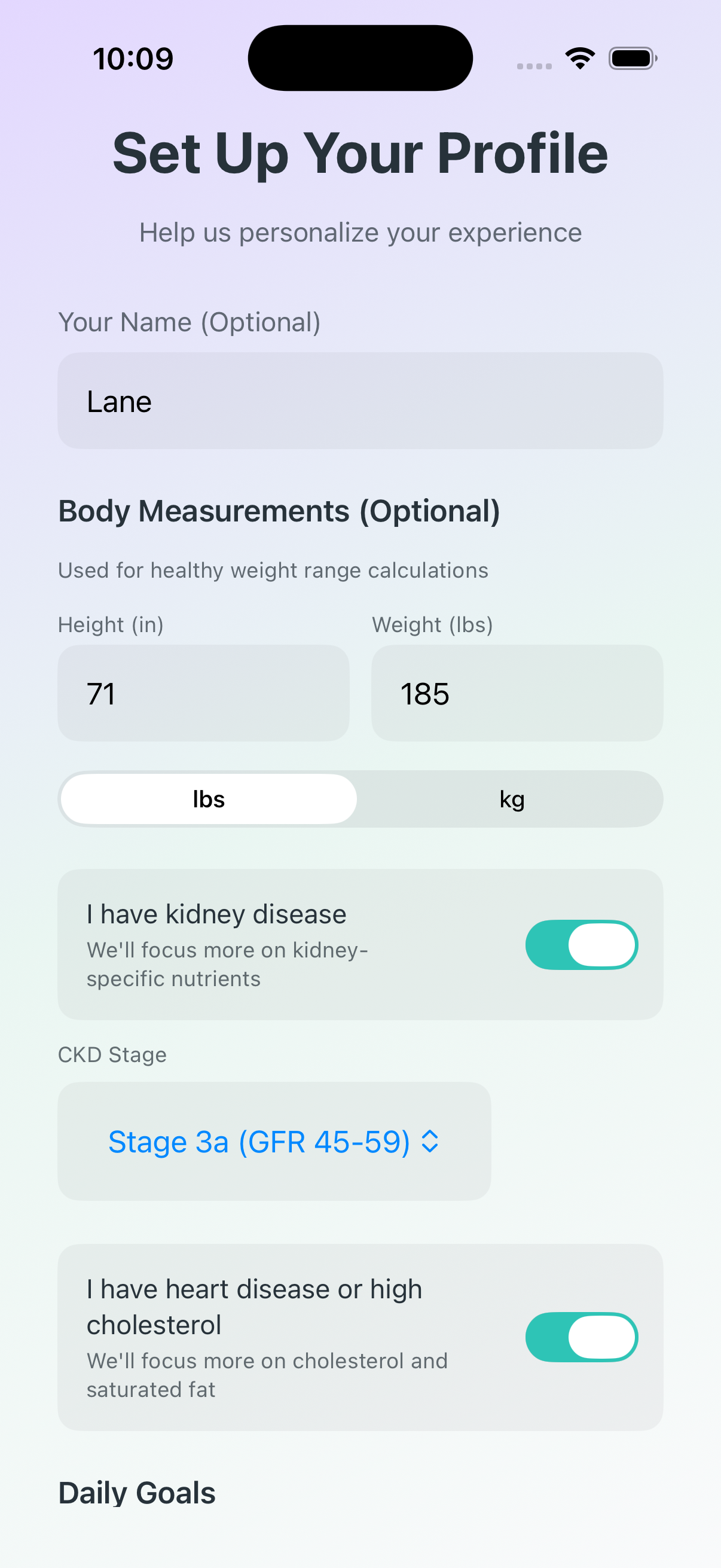
Next, you'll set up your profile. Everything here is optional and can be changed later:
Your Name - How you'd like to be greeted
Body Measurements - Your height and weight, used for healthy weight range calculations
Health Focus - Add kidney or heart health tracking (see below)
Daily Goals - Your starting calorie and nutrient targets
Turning On Sage
Setup then asks whether you'd like to use Sage, your built-in nutrition partner. Choose Enable Sage or Continue Without Sage. The screen explains how the text and photos you share with Sage are handled, and you can turn Sage on or off anytime in Settings. Sage's features (chat, Snap to Log, scanning, Gut Check, and Your Sage Digest) are part of PureLog Premium.
The last steps share a few tips and ask for the permissions PureLog uses, like Apple Health and notifications.
Choosing Your Health Focus
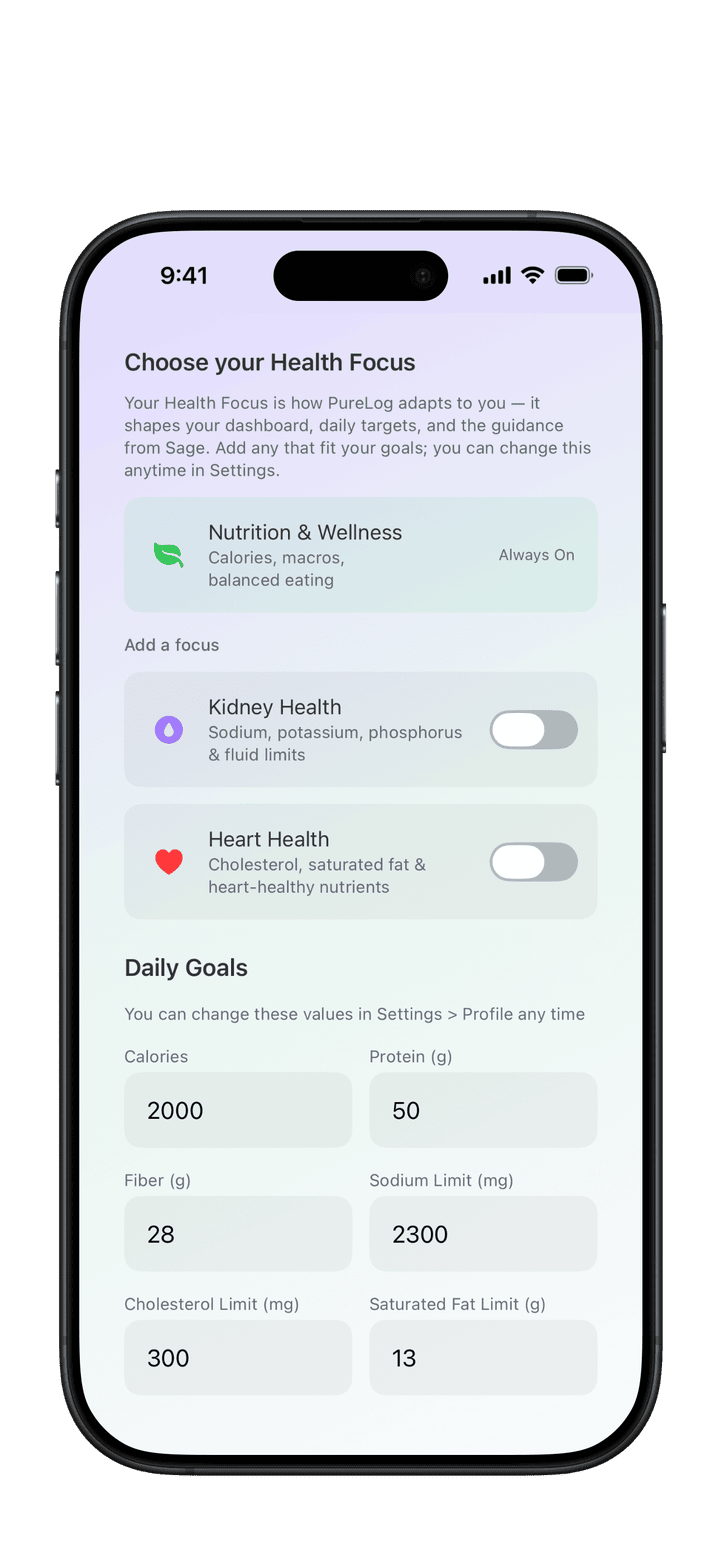
A health focus changes which nutrients PureLog tracks and highlights. You can turn one on during setup or anytime in Settings > Health Focus.
Nutrition & Wellness (Always On)
Standard nutrition tracking for overall health. Tracks calories, macros (protein, carbs, fat), fiber, and key micronutrients. Protein is tracked as a goal to meet.
Kidney Health
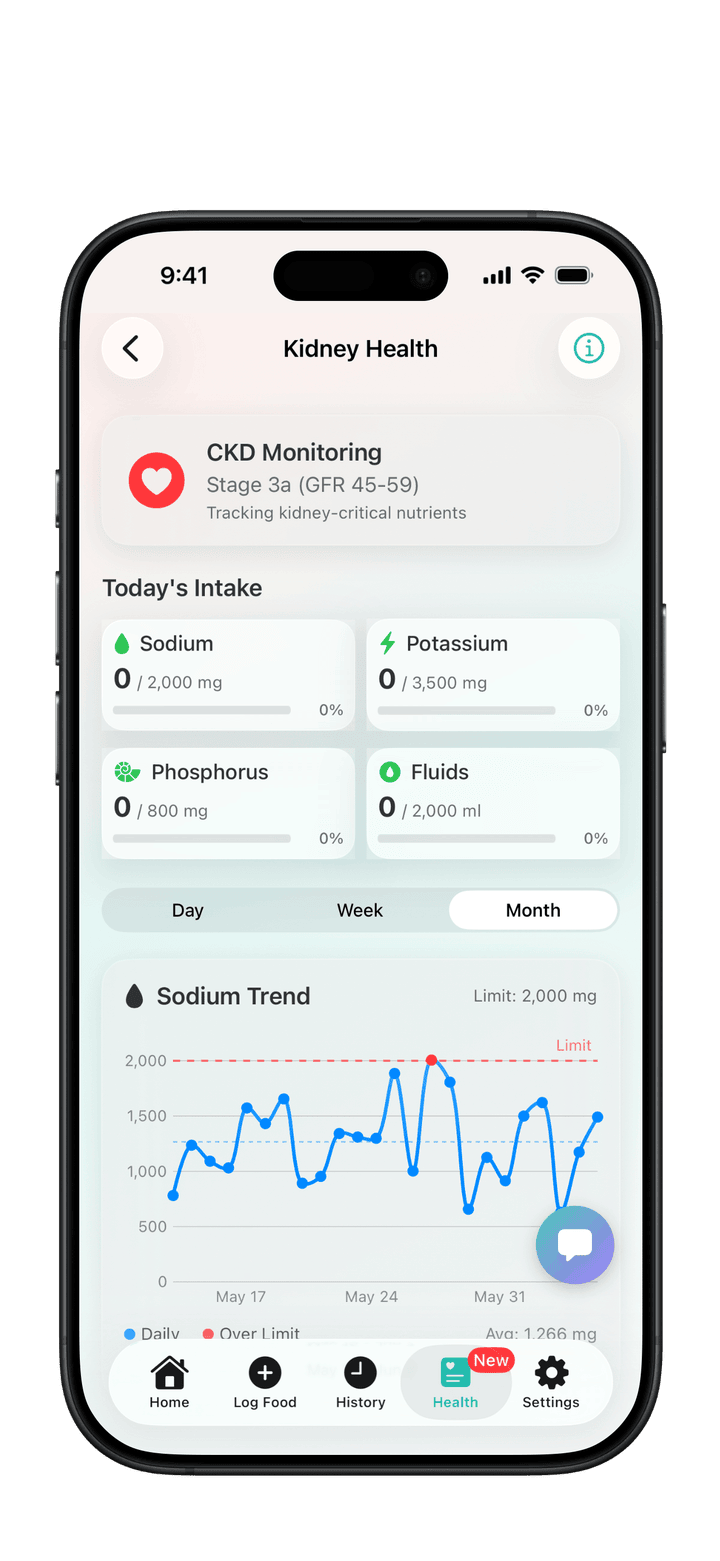
When you turn on Kidney Health, PureLog adapts to help you manage kidney-critical nutrients:
Sodium, Potassium, Phosphorus - Tracked as limits (sodium drops to 2,000 mg and phosphorus to 800 mg), with warnings as you approach them
Protein - Changes from a goal to a limit (important for CKD management)
Fluids - A daily fluid limit for those with restrictions
CKD Stage - Pick your stage (1-5) right under the Kidney Health switch; it sets your default fluid limit
Kidney Health card - A Kidney Health card appears in the Health tab with kidney-specific trends
Heart Health
When you turn on Heart Health, PureLog emphasizes heart-healthy nutrition:
Sodium - A stricter limit (1,500 mg) aligned with heart health guidelines
Cholesterol - A daily limit of 200 mg
Fiber - A higher goal of 30 g
Heart Health card - A Heart Health card appears in the Health tab
Heart-focused guidance - Sage's suggestions consider your heart health
Tip: You can turn on both Kidney Health and Heart Health if you're managing both. PureLog will track all relevant nutrients.
Note: Your logged food is always kept when you switch a health focus on or off, but the related limits reset to that focus's defaults. If you've set custom limits, check them in Edit Goals afterwards.
Understanding the Dashboard
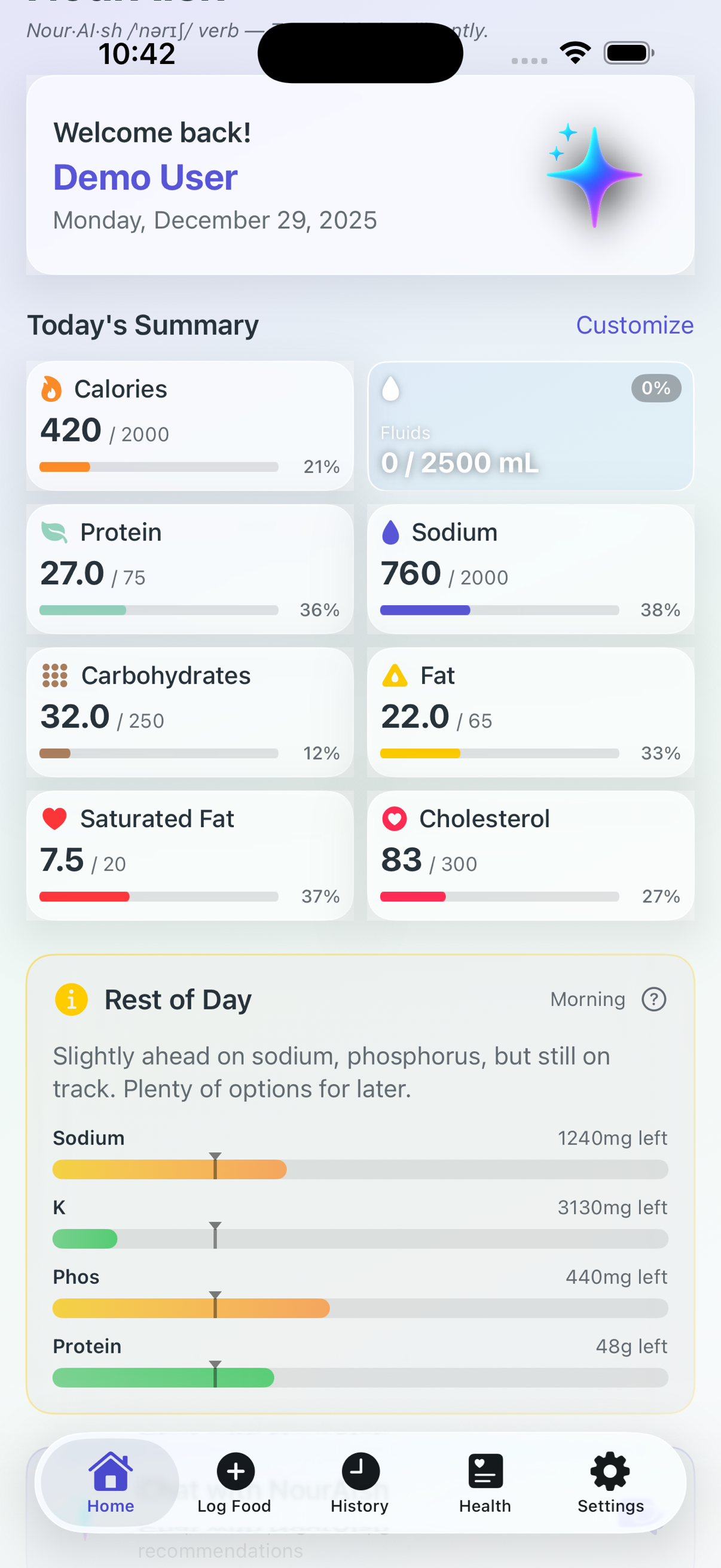
The Home tab is your nutrition dashboard, showing your daily progress at a glance.
Today's Summary
At the top of the Home tab, you'll see nutrient tiles showing your progress for today:
Nutrient Tiles - Each tile shows your current intake vs. your daily target with a progress bar and a Goal or Limit label.
Tiles or Radar - Use the toggle at the top of Today's Summary to switch between the tile view and a Radar chart that maps your whole day's nutrients against your targets at a glance.
Customize - Tap Customize to choose which nutrients appear and drag tiles into the order you want. To reorder or hide whole Dashboard sections, use Customize Dashboard at the bottom of the Home tab.
Color-Coded Progress - Progress bars use intuitive colors: green means you're doing well, yellow appears when you're approaching your limit (70-90%), and red warns you're at or over your limit (90%+). Goal nutrients like protein and fiber always show green. With Kidney Health on, protein becomes a limit and follows the green/yellow/red pattern. With Heart Health on, keep an eye on sodium, saturated fat, and cholesterol; they're always limits, so their colors help you stay within heart-healthy targets.
How's my day?
Tap the How's my day? card for a report on today's nutrition so far: how you're doing against your goals, with friendly guidance. With PureLog Premium, Sage writes it for you. Tap the save button on a report to keep it, and tap the History button next to the card to see your Saved Reports.
Rest of Day
The Rest of Day feature provides time-aware nutrition guidance. It calculates your remaining nutrient budget based on the current time of day, showing you how much of each nutrient you can still consume. This helps you make smarter meal choices—for example, if it's 6 PM and you've only used half your calorie budget, you know you have room for a hearty dinner. Tap the question mark icon on the right to see detailed information about how to read and use the Rest of Day chart.
Health Focus
If you've turned on Kidney Health or Heart Health, a small label near the top of the Home tab shows your active focus, as a quick reminder of what PureLog is watching for you.
Gut Check
Each morning, Sage writes a short recap of how yesterday went against your goals — celebrating the wins and gently flagging anything that ran high, even naming the food behind it (e.g. "mostly from the soy-glazed chicken"). Tap it for a deeper dive. (PureLog Premium; free users get a daily word of encouragement here instead.)
Today's Entries
Everything you've logged today, newest first. Each entry shows:
Food name and meal icon
Calorie count
Time logged
Tap any entry to view details, edit, or delete it.
Recent Vitals
Once you have readings, the bottom of the Home tab shows your most recent health measurements:
Weight - Your latest weight entry with the date recorded
Blood Pressure - Most recent reading with a status indicator (Normal, Elevated, etc.)
Sleep - Last night's sleep with bed and wake times
Steps Today and Last Workout - From Apple Health, if you've allowed activity access
Tap any vital to see its history and trends. To log a new weight, blood pressure, or sleep entry, use Log Vitals in the Health tab.
Logging Your First Food
PureLog offers several ways to log food. Here's the quickest way to get started:
Using Chat with Sage
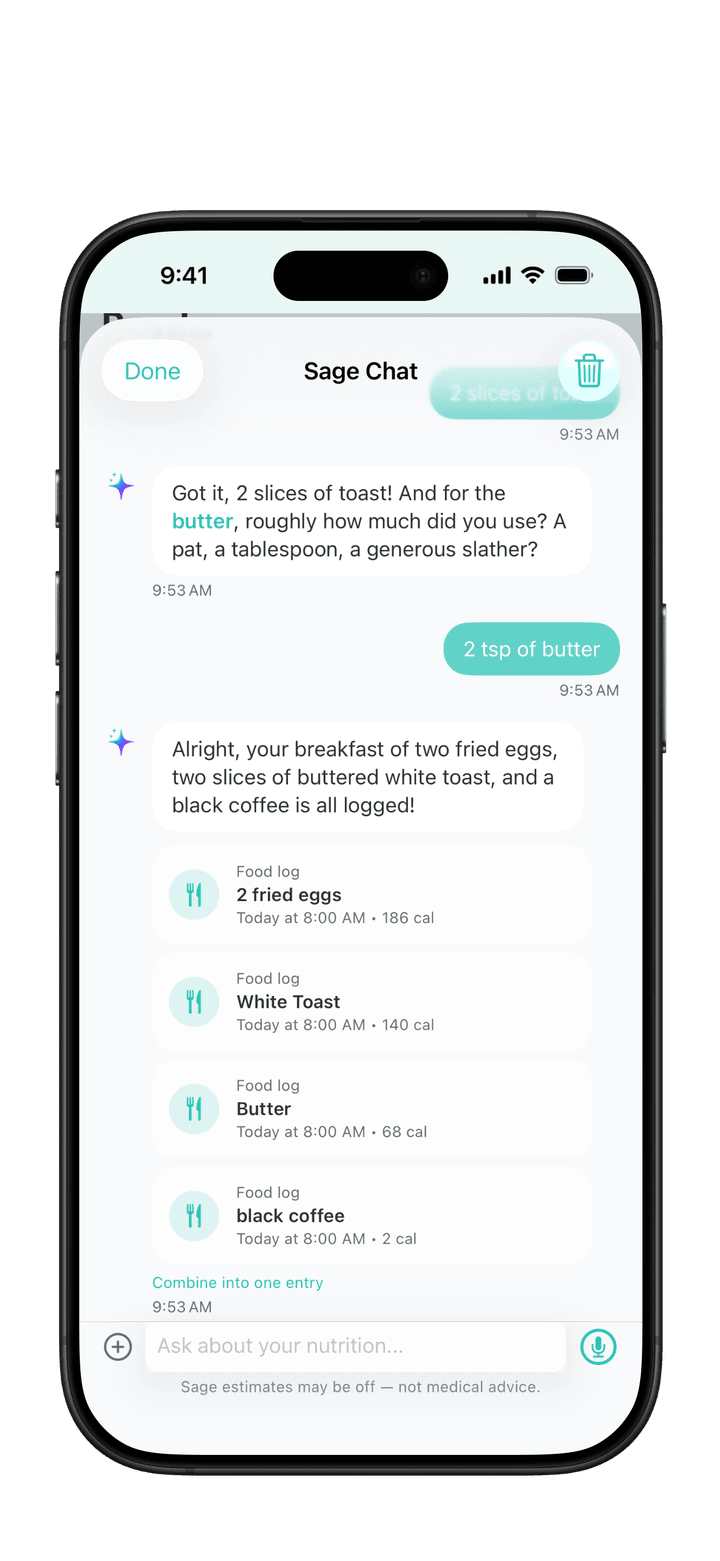
The easiest way to log food is by describing your meal in natural language:
Tap the Log Food tab at the bottom of the screen
Tap the Chat with Sage card at the top
Type what you ate, like "bowl of oatmeal with blueberries and honey"
Sage works out the nutrition and logs it. If something's unclear, like how much butter went on the toast, Sage asks a quick question first.
Chat with Sage is part of PureLog Premium, and Sage needs to be turned on in Settings.
Tip: Be specific for better accuracy! "Large banana" gives more accurate results than just "banana."
Other Ways to Log Food
From the Log Food tab, you can also:
Search Food - Search your saved foods, recipes, and history, plus the USDA and Open Food Facts databases
Snap to Log - Photograph your meal and Sage identifies each food (Premium)
Once you've logged a few foods, you can log hands-free without opening the app. Try saying:
"Log water in PureLog"
"Log (a saved food or recipe) in PureLog"
"How am I doing in PureLog" to hear today's calories and the nutrients your health focus watches
These use your own saved foods, recipes, and recent history, so they work without Premium. You'll also find them in the Shortcuts app for automations.
Navigating the App
PureLog has five main tabs at the bottom of the screen:
Home
View your daily nutrition summary, Gut Check, How's my day?, today's entries, and recent vitals.
Log Food
Add food with Chat with Sage, Snap to Log, search, scanning, manual entry, recipes, or saved foods.
History
Browse past entries, view trends, and edit or delete logged foods.
Health
Your Sage Digest, Nutrition Trends, the Kidney Health and Heart Health cards (when that focus is on), vitals (weight, blood pressure, sleep), activity, articles, and food recalls.
Settings
Your profile, health focus, daily goals, Sage and Memory, notifications, health reports, backup & restore, and other app settings.
Your Sage Digest
The Your Sage Digest card in the Health tab opens a two-week review: a calendar of how each day landed, per-nutrient trends ordered by your health focus, and streaks. With Premium, Sage adds a written read once a week covering what's going well, what to watch, and one small nudge, then checks the next week whether you acted on it. Your numbers are always visible; the written part needs Premium with Sage turned on.
Note: You can turn on Kidney Health or Heart Health anytime in Settings > Health Focus. This changes which nutrients are highlighted and adds a matching card to the Health tab.
Setting Your Daily Targets
PureLog starts you on standard daily targets (2,000 calories, 2,300 mg sodium, and so on). Turning on a health focus adjusts the related ones, and you can customize any of them to match your own goals.
Adjusting Your Targets
Go to Settings
Scroll down to the Daily Goals section, which shows your current targets
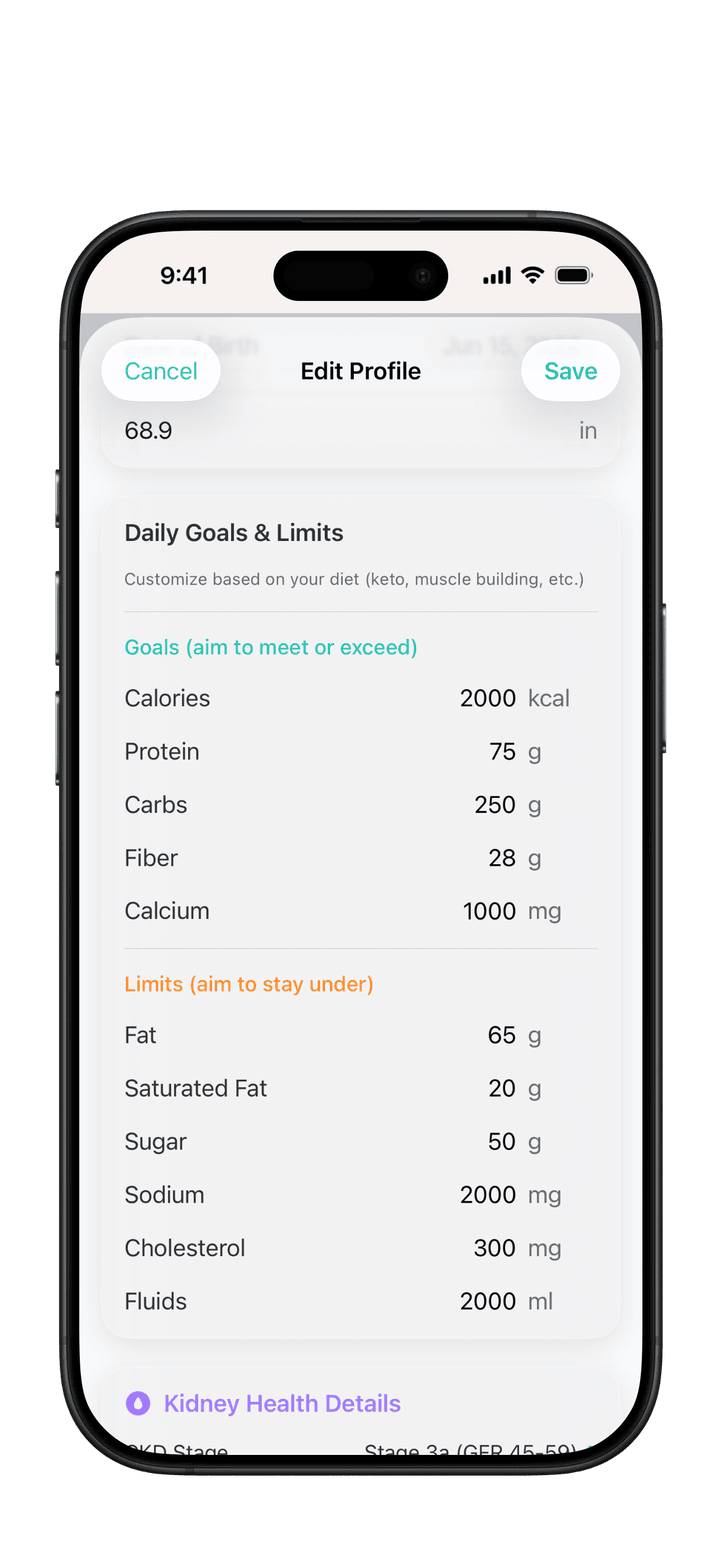
Tap Edit Goals below the Daily Goals section (or tap your profile card at the top)
In the Daily Goals & Limits section, adjust your targets:
Goals - Calories, Protein, Carbs, Fiber, Calcium (aim to meet or exceed)
Goals (Green progress) - Nutrients you want to reach, like protein and fiber
Limits (Red when exceeded) - Nutrients you want to stay under, like sodium and saturated fat
Health-Specific Limits
If you're managing a health condition, turn on a focus in Settings > Health Focus:
Kidney Health - Lower sodium and phosphorus limits, a fluid limit based on your CKD stage, and protein becomes a limit
Heart Health - A stricter sodium limit, a cholesterol limit, and a higher fiber goal
Important: These values are general guidelines and starting points only. Your individual needs may differ based on blood test results, presence of proteinuria, other conditions, and medications. Please consult your doctor, nephrologist, or registered dietitian to discuss personalized limits and goals for your specific situation.
Note: Your health focus affects which nutrients are tracked as goals vs. limits. For example, Kidney Health tracks protein as a limit rather than a goal.
Tips for Success
Build a Logging Habit
Set meal reminders - Go to Settings > Notifications to enable reminders for breakfast, lunch, and dinner
Log as you eat - It's easier to remember portions when food is in front of you
Don't stress about perfection - Estimates are fine; consistency matters more than precision
Use Saved Foods
After logging a food, it's automatically saved for quick re-logging
Access your saved foods from the Saved Foods button in Log Food
Long-press any saved food for quick actions like logging or deleting
Create Recipes for Regular Meals
If you make the same meals often, create recipes for them
Check the History tab to view past days and compare your intake over time
With Premium, create regular backups to protect your data (Settings > Backup & Restore). You just never know, so PureLog will remind you.
Pro Tip: Tell Sage about your allergies, dislikes, and household in Settings > Memory. Sage uses them to make every suggestion fit you, and suggests new ones from what you log.
Need More Help?
Check out our FAQ for answers to common questions, or contact our support team.